Blog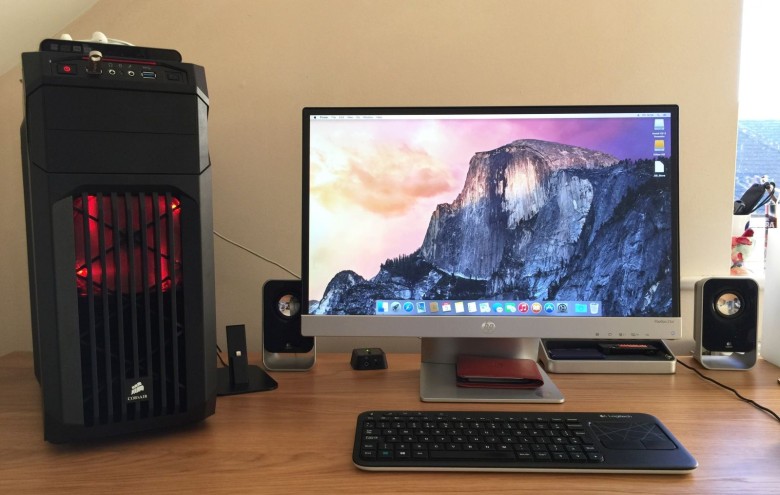

Feb 23, 2026 - 20 MIN READ
Hackintosh Installation Guide
A quick and practical way to install macOS on non-Apple hardware with OpenCore.
mou7s
Introduction
A Hackintosh is a non-Apple computer running macOS. In this guide, you'll learn a fast and practical workflow for installing macOS on PC hardware using OpenCore.
Prerequisites
- You need a Windows PC. For the best Hardware-Sniffer experience, use Windows.
- The PC must be connected to the internet.
- Python must be installed on this PC.
- A USB drive (at least 16 GB).
- Download Rufus.
- Download OpCore-Simplify.
- Download OpenCore.
In this workflow, you only need themacrecoverytool from OpenCore. - Keep in mind that the most reliable approach is still to build your EFI manually by following Dortania's OpenCore Install Guide. EFI files generated by tools like OpCore-Simplify may not be perfect for every machine. If you want a faster and more general workflow, set aside about one hour and let's get started.
Installation Process
- Create the USB drive
- Use Rufus to prepare the USB drive.
- In
Device, select your USB drive. - In
Boot selection, chooseNon bootable. - In
Partition scheme, chooseGPT. - Keep other settings at their default values, then click
START.
- Generate the EFI
- Open the downloaded OpCore-Simplify folder and run
OpCore-Simplify.bat. - Select
Select Hardware Report. - Enter
eto generate a hardware report for your current machine. Use this report to check whether your device is suitable for Hackintosh. - If the hardware report indicates support, select
Build OpenCore EFI. Choose the macOS version you want to install, and OpCore-Simplify will generate an EFI for you. - After generation is complete, the EFI folder opens automatically. Copy the
EFIfolder to the root directory of your USB drive.
- Open the downloaded OpCore-Simplify folder and run
- Download macOS recovery files
- Open the downloaded OpenCore folder and go to
Utilities/macrecovery. - Choose the command for your target macOS version based on Dortania's OpenCore Install Guide.
- Run the command to download macOS recovery files.
- Copy the generated
com.apple.recovery.bootfolder to the root directory of your USB drive.
- Open the downloaded OpenCore folder and go to
- Configure BIOS settings
- Adjust your motherboard BIOS settings according to Dortania's OpenCore Install Guide.
- Required settings vary by motherboard series, so use Dortania's documentation as the source of truth.
- For AMD platforms, refer to Ryzen and Threadripper (17h and 19h).
- Install macOS
- Boot from the USB drive to launch OpenCore.
- Start the macOS installation process and complete setup.
GitHub Copilot Not Working in Markdown Files
A quick fix for when Copilot stops giving suggestions in Markdown files.
The 2026 Nobel Prize in Chemistry: How Can Chemistry Choose a Mirror Image?
From molecular handedness to nonlinear effects and self-amplifying reactions, understand how tiny asymmetries can grow into a nearly one-sided chemical world.